
0
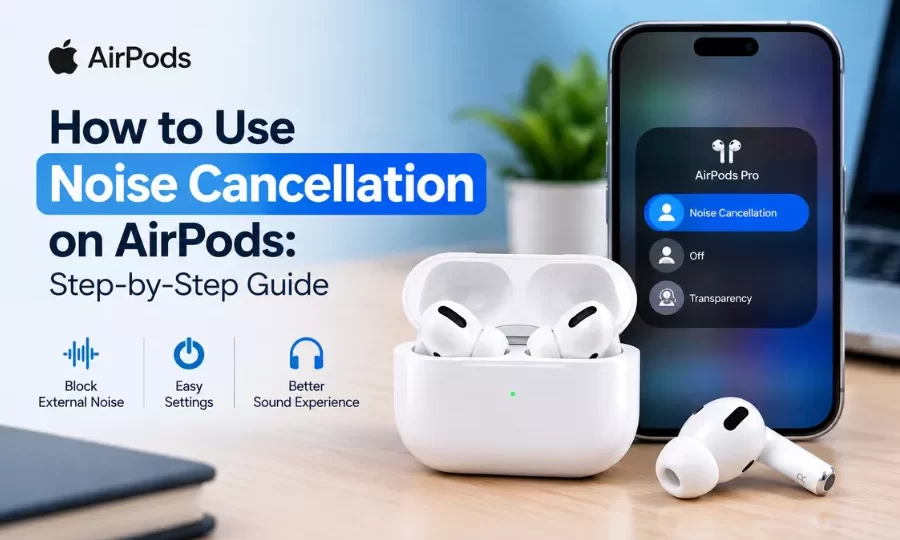
How to Use Noise Cancellation on AirPods: Step-by-Step Guide
Do you want to enjoy music, podcasts, or calls without distractions? Learning how to use noise cancellation on AirPods can help you create a more comfortable listening experience at home, in the office, while travelling, or during your daily commute. Apple’s Active Noise Cancellation (ANC) technology reduces unwanted background sounds, helping you focus on what you are listening to. Depending on your AirPods model, you can switch between Noise Cancellation, Transparency, and other listening modes directly from your iPhone, Mac, or AirPods controls. In this guide, we will explain how to turn on noise cancellation on AirPods, change noise control settings, use ANC with a Mac, improve noise cancellation performance, and fix common AirPods noise cancellation problems.
Which AirPods Models Support Noise Cancellation?
Not every AirPods model includes Active Noise Cancellation. Before changing your settings, check whether your AirPods support this feature.
The following models offer Active Noise Cancellation in supported configurations:
- AirPods Pro: AirPods Pro models include Active Noise Cancellation and Transparency features.
- AirPods Max: Apple’s over-ear headphones support Active Noise Cancellation and Transparency mode.
- AirPods 4 with Active Noise Cancellation: This version of AirPods 4 supports ANC, unlike the standard AirPods 4 model.
Older standard AirPods models without ANC do not support Active Noise Cancellation. To check your AirPods model, connect them to your iPhone, open Settings, and select your AirPods when they appear. You can also check the model number in your Bluetooth device information or on the product itself. If your AirPods do not support ANC, you can still use them to listen to audio, make calls, and access other supported features.
What Is Active Noise Cancellation (ANC) on AirPods?
Active Noise Cancellation, commonly called ANC, is a technology that helps reduce unwanted external sounds while you listen to audio. AirPods with ANC use external microphones to detect surrounding noise and processing technology to generate sound that counteracts some of that noise. Supported models may also use internal microphones to monitor sound inside the ear.
This technology can help reduce sounds such as:
- Airplane and train cabin noise.
- Air conditioning and fan noise.
- Background sounds in offices and public spaces.
- Some traffic and commuting noise.
- Other continuous environmental sounds.
However, ANC does not eliminate every sound. Sudden noises, nearby conversations, and high-pitched sounds may still be audible. Noise Cancellation is particularly useful when you want to concentrate on music, podcasts, or other audio in a noisy environment.
How to Turn On Noise Cancellation on AirPods Using an iPhone
One of the easiest ways to enable Active Noise Cancellation is through your iPhone’s Control Centre.
Follow these steps to turn on ANC on compatible AirPods:
Step 1: Connect Your AirPods
Place your AirPods in your ears and make sure they are connected to your iPhone.
Step 2: Open Control Centre
On an iPhone with Face ID, swipe down from the top-right corner of the screen. On an iPhone with a Home button, swipe up from the bottom edge.
Step 3: Find the Volume Control
Locate the volume slider associated with your connected AirPods.
Step 4: Press and Hold the Volume Slider
Touch and hold the volume control until the additional audio options appear.
Step 5: Select Noise Control
Tap the Noise Control option if it appears. You should see the available listening modes for your AirPods.
Step 6: Choose Noise Cancellation
Select Noise Cancellation to enable ANC.
Your AirPods should now reduce unwanted background noise while you listen to supported audio. The exact menu layout may vary depending on your iPhone model, iOS version, and AirPods model.
How to Enable Noise Cancellation Directly on AirPods
You do not always need to use your iPhone to change noise cancellation settings. Supported AirPods models include physical controls that let you switch listening modes directly.
How to Turn On Noise Cancellation on AirPods Pro
AirPods Pro models have force sensors on their stems that allow you to switch between supported listening modes.
Follow these steps:
- Put your AirPods Pro in your ears.
- Locate the stem of either AirPod.
- Press and hold the stem until you hear a tone.
- Listen for the tone indicating that the listening mode has changed.
Depending on your settings, pressing and holding the stem can switch between Noise Cancellation, Transparency, and other configured modes. If the control does not activate Noise Cancellation, check the available listening modes in your iPhone’s AirPods settings.
How to Turn On Noise Cancellation on AirPods Max
AirPods Max have a dedicated noise control button.
To enable Noise Cancellation:
- Put on your AirPods Max.
- Locate the noise control button on the headphones.
- Press the button to switch between the configured listening modes.
- Listen for the audio confirmation and check the selected mode on your connected device.
You can customise which listening modes are available when using the physical button.
Tip: If your AirPods repeatedly switch to the wrong mode, review your noise control settings and confirm that Noise Cancellation is included in the available switching options.
How to Turn Off Noise Cancellation on AirPods
Sometimes, you may want to hear your surroundings instead of reducing background noise. For example, you might want to listen for announcements at an airport or have a conversation without removing your AirPods.
You can turn off ANC by selecting another supported listening mode.
Method 1: Use Your iPhone
- Connect your AirPods to your iPhone.
- Open Control Centre.
- Press and hold the AirPods volume slider.
- Open the Noise Control options.
- Select Transparency or Off, if available.
Transparency mode lets environmental sounds pass through the AirPods using their microphones. Off disables active noise control on supported models.
Method 2: Use the AirPods Controls
On AirPods Pro or AirPods Max, use the physical controls to switch between the listening modes configured for your device. Keep in mind that Transparency mode and Off are different. Transparency mode is designed to help you hear your surroundings, whereas Off disables ANC and Transparency processing where that option is supported.
Understanding AirPods Noise Control Modes
Apple provides different listening modes on supported AirPods models. Understanding these options helps you choose the best setting for your environment.
| Listening mode | What it does | Best use |
|---|---|---|
| Noise Cancellation | Reduces unwanted external noise | Flights, commuting, studying |
| Transparency | Lets you hear more of your surroundings | Walking, conversations, announcements |
| Off | Disables active noise control where supported | When you prefer no ANC or Transparency |
| Adaptive Audio | Adjusts noise control according to your surroundings on supported models | Changing environments |
Noise Cancellation Mode
Noise Cancellation is designed to reduce background sounds so you can concentrate on your audio. It can be helpful during travel, in busy offices, and in other environments where continuous noise makes listening difficult.
Transparency Mode
Transparency mode uses the AirPods microphones to let outside sounds reach your ears more naturally. It is useful when talking to someone, listening for public announcements, or staying more aware of your surroundings.
Adaptive Audio
Adaptive Audio is available on supported AirPods models. It combines noise control behaviours to adjust the listening experience according to the sounds around you. Its behaviour and additional options depend on your AirPods model and software version.
Which AirPods Noise Control Mode Should You Use?
Choose Noise Cancellation when you want to reduce background noise, Transparency when you need to hear your surroundings, and Adaptive Audio when you want supported AirPods to adjust noise control automatically. When walking near traffic or crossing roads, stay alert and use a listening mode that allows you to hear important environmental sounds.
How to Customise AirPods Noise Cancellation Settings on an iPhone
Your iPhone allows you to adjust several AirPods settings, including the listening modes available through physical controls.
Follow these steps:
- Connect your compatible AirPods to your iPhone.
- Open Settings.
- Tap your AirPods name near the top of the screen, if displayed.
- Find the Noise Control or listening mode settings.
- Select the modes you want to use.
- Adjust any additional available audio settings to suit your preferences.
Depending on your AirPods model, you may be able to customise which modes are activated when you press and hold the stem or use the noise control button. Some AirPods Pro models also support additional accessibility options, including noise cancellation with one AirPod. To explore this option, open Settings, select Accessibility, and look for the AirPods settings. If your model supports it, enable the Noise Cancellation with One AirPod option. The availability and location of these settings can vary by iOS version and AirPods model.
How to Use Noise Cancellation on AirPods with a Mac
You can also use Active Noise Cancellation while listening to music, attending online meetings, or watching videos on a Mac. First, make sure your compatible AirPods are connected to your Mac.
Follow these steps:
- Put your AirPods in your ears.
- Connect them to your Mac through Bluetooth if they are not already connected.
- Open Control Centre from the macOS menu bar.
- Select Sound or your connected AirPods, depending on your macOS version.
- Open the available listening mode or Noise Control options.
- Select Noise Cancellation.
Your AirPods should now use ANC while connected to your Mac. If the Noise Control option does not appear, confirm that your AirPods model supports ANC and that your Mac recognises them as the connected audio device. You can also use the physical noise control button on AirPods Max or the stem controls on AirPods Pro, provided the desired mode is configured.
How to Improve AirPods Noise Cancellation Performance
If your AirPods do not seem to block enough background noise, a few adjustments may improve their performance.
1. Make Sure Your AirPods Fit Properly
A secure fit is particularly important for AirPods Pro because the silicone ear tips help create a seal inside the ear canal. If the fit is loose, outside noise may enter your ears even when ANC is enabled. Try a different ear tip size if available and comfortable.
2. Use the Ear Tip Fit Test
Supported AirPods Pro models offer an Ear Tip Fit Test that helps determine whether your ear tips provide a suitable seal. To access it, connect your AirPods Pro to your iPhone and open their settings. Look for the Ear Tip Fit Test option if it is available. Follow the on-screen instructions to check the fit.
3. Clean Your AirPods Carefully
Dust, earwax, and debris can affect microphone performance and sound quality. Clean your AirPods according to Apple’s official cleaning instructions. Avoid using sharp objects or allowing moisture to enter the openings.
4. Check Your Noise Control Mode
Make sure Noise Cancellation is actually selected. If Transparency, Adaptive Audio, or Off is enabled, the listening experience will be different.
5. Keep Your AirPods Software Updated
AirPods firmware updates are generally delivered automatically when compatible AirPods are charging and near a connected Apple device under the required conditions. Keep your iPhone or other Apple device updated and follow Apple’s guidance if you are troubleshooting a specific issue.
6. Test Your AirPods in Different Environments
ANC performance varies with the type of noise around you. Continuous background noise may be reduced more effectively than sudden voices or sharp sounds. Try your AirPods in a few different environments to determine whether the issue is related to the surrounding noise or the device itself.
AirPods Noise Cancellation Not Working? Common Problems and Fixes
If Active Noise Cancellation is not working as expected, try these troubleshooting steps before assuming your AirPods are faulty.
Problem 1: Noise Cancellation Is Not Available
Possible cause: Your AirPods model may not support ANC.
Solution: Check your AirPods model in your iPhone settings or consult Apple’s official product information. Standard AirPods models without ANC cannot enable this feature through software settings.
Problem 2: Noise Cancellation Feels Weak
Possible cause: Poor fit, incorrect ear tip size, blocked microphone openings, or the type of surrounding noise.
Solution: Check your ear tip fit, clean your AirPods carefully, and confirm that Noise Cancellation mode is enabled.
Problem 3: AirPods Keep Switching Listening Modes
Possible cause: The physical controls are configured to switch between multiple listening modes, or an automatic listening feature is enabled.
Solution: Open your AirPods settings and customise the available listening modes. Review Adaptive Audio and other relevant options on supported models.
Problem 4: Noise Cancellation Works on One AirPod but Not the Other
Possible cause: A fit issue, blocked opening, connection problem, or device-specific fault.
Solution: Check that both AirPods are charged, clean them carefully, reconnect them, and test the fit. If the problem continues, consult Apple Support.
Problem 5: Noise Cancellation Stops Working Unexpectedly
Possible cause: A temporary software issue or connection problem.
Solution: Place your AirPods in their charging case, reconnect them, and test again. If necessary, follow Apple’s instructions for resetting your AirPods and pairing them again.
Resetting should be a later troubleshooting step, not the first thing you try.
Problem 6: Noise Cancellation Is Not Working on a Mac
Possible cause: The AirPods may not be selected as the connected audio device, or the listening mode may not be available through the current interface.
Solution: Check your Mac’s Bluetooth and sound settings, reconnect the AirPods, and use the physical controls to change modes if supported.
If none of these solutions works, consult Apple’s official AirPods support resources for model-specific instructions.
Conclusion
Learning how to use noise cancellation on AirPods can make listening more comfortable and help reduce unwanted background noise in everyday situations. You can enable ANC using your iPhone’s Control Centre, switch listening modes directly through supported AirPods controls, or change settings while using a Mac. Choosing the right mode, ensuring a good fit, and keeping your AirPods clean can also improve your experience. If your AirPods noise cancellation is not working, start by checking model compatibility, listening mode settings, and ear tip fit before trying more advanced troubleshooting steps. For genuine Apple products and expert guidance, you can also consult an Apple Authorised Reseller. With the right settings, you can get more out of your AirPods at work, at home, and while travelling.
Frequently Asked Questions (FAQs)
Q1. How do I turn on noise cancellation on AirPods?
Connect compatible AirPods to your iPhone, open Control Centre, press and hold the volume slider, open Noise Control, and select Noise Cancellation. You can also use the physical controls on supported AirPods models.
Q2. Which AirPods models have noise cancellation?
Active Noise Cancellation is available on AirPods Pro models, AirPods Max, and AirPods 4 with Active Noise Cancellation. Standard AirPods 4 and other non-ANC models do not support this feature.
Q3. Why is noise cancellation not working on my AirPods?
Check whether your model supports ANC, confirm that Noise Cancellation is selected, inspect the fit and cleanliness of your AirPods, and reconnect them if necessary.
Q4. Can I turn on AirPods noise cancellation without an iPhone?
Yes. Supported AirPods Pro and AirPods Max models have physical controls for switching listening modes. You can also manage compatible settings through a supported Mac or other Apple device.
Q5. What is the difference between Noise Cancellation and Transparency mode?
Noise Cancellation reduces unwanted external noise, while Transparency mode uses the microphones to let surrounding sounds reach your ears. The two modes are designed for different listening situations.
Q6. Can I use noise cancellation on only one AirPod?
Some AirPods Pro models support noise cancellation with one AirPod through an accessibility setting. Availability depends on the model and software version.
Q7. How do I turn off noise cancellation on AirPods Pro?
Open Control Centre on your iPhone, press and hold the AirPods volume slider, and select Transparency or Off if available. You can also switch modes using the stem controls.
Q8. Does AirPods noise cancellation work on Android?
Supported AirPods models can connect to Android phones through Bluetooth. Physical controls for ANC may continue to work, but Apple-specific settings and features may not be available through Android.
Q9. Does Active Noise Cancellation drain AirPods battery faster?
Active Noise Cancellation uses additional processing and microphone functions, which can affect battery life. The actual difference depends on the AirPods model, volume level, and usage conditions.
Q10. How can I make AirPods noise cancellation more effective?
Use a secure fit, select Noise Cancellation mode, perform the Ear Tip Fit Test if supported, keep the AirPods clean, and ensure their microphones are unobstructed.