
0
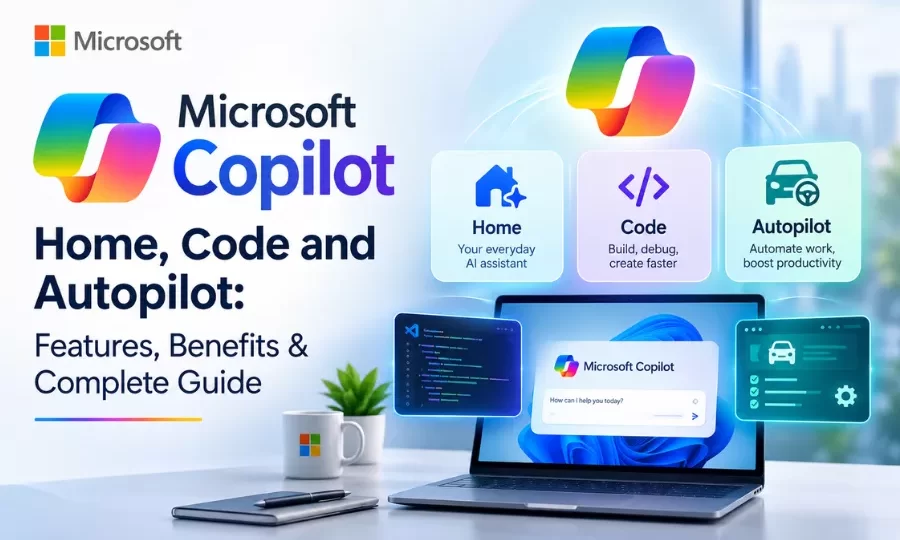
Microsoft Copilot Home, Code and Autopilot: Features, Benefits & Complete Guide
Artificial intelligence is changing how businesses create content, develop applications, manage projects, and automate everyday tasks. Microsoft is taking this transformation further with its redesigned Copilot experience, introducing three capabilities: Copilot Home, Copilot Code, and Copilot Autopilot. Announced on September 25, 2026, these features are designed to help users get work done, build custom solutions, and delegate complex tasks to AI agents. Unlike a traditional AI chatbot that primarily answers questions, the new Microsoft Copilot experience brings together AI assistance, application development, and autonomous workflow automation in one environment.
Whether you are a business owner, software developer, IT professional, or office worker, understanding these capabilities can help you identify practical ways to improve productivity and reduce repetitive work. In this guide, we will explore what Microsoft Copilot Home, Code, and Autopilot are, how they work, their key differences, their benefits, and what users should know about pricing, availability, security, and limitations.
What Is the New Microsoft Copilot?
Microsoft Copilot is an AI-powered assistant designed to help people work with information, create content, analyze data, and complete tasks more efficiently. It integrates with Microsoft productivity tools, including Word, Excel, PowerPoint, Outlook, and Teams, depending on the user’s account and available features.
The new Copilot experience expands this functionality by organizing work around three main capabilities.
- Copilot Home: A central workspace for asking questions, reviewing recent activity, creating documents, and coordinating work.
- Copilot Code: An AI-powered solution-building environment that helps users create applications, dashboards, and automations using natural-language instructions.
- Copilot Autopilot: A proactive AI agent designed to continue working on assigned tasks, follow up on activities, and manage recurring workflows within defined boundaries.
Together, these capabilities aim to help users move from asking AI for information to creating useful solutions and delegating multi-step tasks.
What Is Microsoft Copilot Home?
Microsoft Copilot Home is the central starting point for working with AI. It brings Chat and Cowork together, allowing users to ask questions, review recent activity, discover suggested actions, and continue working on existing projects without constantly switching between different tools.
Instead of treating every request as a separate conversation, Home is designed to help users keep track of their work and move smoothly between different tasks.
Key features of Copilot Home
- Centralized AI workspace: Access conversations, work activities, and suggested actions in one place.
- AI-powered chat: Ask questions, summarize information, generate ideas, and draft content.
- Task delegation with Cowork: Hand over complex, multi-step tasks and review the resulting work.
- Microsoft Office integration: Create and edit Word documents, Excel workbooks, and PowerPoint presentations within the Copilot experience.
- Improved collaboration: Work with teammates on shared documents and keep changes synchronized with supported Office applications.
Practical uses of Copilot Home
Imagine you need to prepare a business proposal for a new customer. You can ask Copilot to draft the proposal, organize relevant information, prepare a presentation, and help structure the next steps. Depending on your permissions and available features, you can work on these deliverables within the Copilot environment rather than repeatedly switching applications.
For businesses that use Microsoft 365, this approach can help simplify everyday work and make information easier to access.
What Is Microsoft Copilot Code?
Microsoft Copilot Code is an AI-powered solution-building feature that helps users create applications, dashboards, trackers, and automations through natural-language instructions.
Traditionally, developing an application requires programming knowledge, development tools, and time spent writing and testing code. Copilot Code aims to make this process more accessible by allowing users to describe what they want to build in everyday language. Microsoft says the feature uses the same underlying technology as GitHub Copilot and operates in a sandboxed environment.
This makes Copilot Code relevant to both developers and professionals who want to create small, purpose-built tools for their work.
Key features of Copilot Code
- Natural-language app development: Describe an application or tool and let Copilot help build it.
- Interactive dashboards: Create interfaces for exploring information and reviewing data.
- Task automation: Develop solutions that help reduce repetitive manual work.
- Custom trackers: Build tools for managing projects, customer requests, inventory, or internal tasks.
- Team collaboration: Create solutions that can be shared with colleagues, subject to the available hosting and access controls.
- Secure execution environment: Use sandboxing and organizational controls designed to help manage how generated code runs.
Examples of what you can build with Copilot Code
1. Sales dashboard
A sales team could describe a dashboard that displays monthly revenue, sales targets, lead status, and performance trends. Copilot Code can help turn that description into a working solution, although the user may still need to connect data sources and validate the results.
2. Inventory management tracker
A small business could create a tool to record product names, stock quantities, reorder levels, and supplier information. This could reduce dependence on manually maintained spreadsheets.
3. Project management tool
A team could build a tracker that organizes project tasks, deadlines, responsibilities, and completion status in one interface.
4. Internal business automation
Organizations could explore custom tools for collecting information, organizing requests, or simplifying repetitive processes.
Does Copilot Code require programming knowledge?
Microsoft describes Copilot Code as a tool that can be used without coding experience. However, that does not mean every application can be built and deployed without technical knowledge.
Complex applications may require debugging, testing, data integration, access permissions, and security reviews. Developers can also use their existing skills to refine the code and improve the reliability of generated solutions.
What Is Microsoft Copilot Autopilot?
Microsoft Copilot Autopilot is a proactive AI agent designed to work on assigned tasks over time, including when the user is not actively interacting with Copilot.
Unlike a conventional chatbot that waits for each new prompt, Autopilot is intended to continue managing work within the objectives, permissions, and boundaries established by the user or organization. Microsoft describes it as a cloud-hosted digital teammate with its own identity, memory, and workspace.
This approach is part of the growing field of AI agents and autonomous workflow automation, in which AI systems can carry out multiple connected steps toward a defined goal.
Key features of Copilot Autopilot
- Proactive task management: Continue working on assigned objectives without requiring a new prompt for every step.
- Recurring workflow automation: Support processes that need to be repeated regularly.
- Follow-up management: Track conversations and help coordinate outstanding requests.
- Multi-step task execution: Organize connected activities, such as planning, preparation, meetings, and follow-ups.
- Microsoft 365 integration: Work with supported tools and information in Teams, Outlook, chats, channels, and documents.
- Organizational controls: Operate within configured permissions, governance policies, and audit mechanisms.
Practical examples of Copilot Autopilot
1. Supplier review management
A procurement team could assign Autopilot the goal of coordinating a supplier review. The agent could help prepare a schedule, organize required information, coordinate follow-ups, and track outstanding responses.
2. Meeting follow-ups
After a project meeting, an assigned workflow could help track action items, identify outstanding responses, and follow up with relevant participants where permitted.
3. Project coordination
Autopilot could help maintain continuity on a project by tracking ongoing work and returning to pending activities rather than requiring the user to explain the entire situation again.
4. Recurring business processes
Teams could explore using Autopilot for repeatable activities such as status collection, review preparation, and routine coordination.
These examples illustrate the types of workflows the technology is designed to support. Actual actions depend on the configured tools, access permissions, product availability, and organizational policies.
How is Autopilot different from a regular AI chatbot?
A regular chatbot primarily responds to questions and instructions during a conversation. An AI agent such as Autopilot is designed to pursue an assigned goal across multiple steps, maintain task continuity, and initiate permitted actions as work progresses.
That additional autonomy can be useful, but it also makes clear objectives, limited permissions, monitoring, and review of important outputs especially important.
Copilot Home vs. Code vs. Autopilot: Key Differences Explained
Although all three capabilities are part of the new Microsoft Copilot experience, they address different needs.
| Feature | Copilot Home | Copilot Code | Copilot Autopilot |
|---|---|---|---|
| Main purpose | Organize and complete work | Build custom solutions | Manage ongoing tasks |
| Primary function | AI assistance and workspace | App and automation creation | Proactive task execution |
| Typical input | Questions and work instructions | Description of a tool or application | Goal, role, and boundaries |
| Best suited for | Everyday productivity | Dashboards, trackers, apps, and workflows | Recurring and multi-step processes |
| Coding knowledge | Generally not required | Not required to get started | Not the primary focus |
| Working style | Interactive assistance and delegated tasks | Creates solutions from instructions | Continues working on assigned goals |
| Potential users | Professionals and teams | Business users and developers | Teams managing ongoing workflows |
The simplest way to understand the difference is that Home helps you work, Code helps you build, and Autopilot helps keep work moving. Their capabilities can complement one another rather than operate as competing alternatives.
Key Benefits of Microsoft Copilot AI Tools
The new Microsoft Copilot capabilities may offer several benefits to individuals and organizations, particularly those already using Microsoft 365.
1. Improved workplace productivity
Copilot can help users draft content, summarize information, organize tasks, and prepare documents. Reducing repetitive steps can give employees more time to focus on planning, decision-making, and other high-value activities.
2. Faster application development
Copilot Code makes it possible to describe a desired tool in natural language and use AI to help create it. This can lower the initial barrier to prototyping internal applications, dashboards, and trackers.
3. Reduced manual work
AI-powered workflow automation can help teams manage recurring tasks, follow-ups, and multi-step processes. Autopilot is designed to support this kind of ongoing work within defined limits.
4. Better collaboration
The integration of Copilot with Microsoft Office applications can help teams create and edit documents, spreadsheets, and presentations while maintaining a connected workflow.
5. More accessible AI tools
Natural-language instructions allow people to interact with AI without having to learn specialized commands or programming syntax before getting started.
6. Greater continuity across tasks
A centralized workspace and persistent AI agents can help users manage work that spans conversations, documents, and recurring activities.
7. Support for business automation
Businesses can explore AI assistance for reporting, customer communication, project coordination, internal tools, and other workflows. The value will depend on how well each use case is designed, tested, and integrated into existing processes.
How to Get Started with Microsoft Copilot Home, Code and Autopilot
Getting started involves choosing an appropriate Copilot experience, checking eligibility, and identifying a task that can benefit from AI assistance.
Step 1: Open Microsoft Copilot
Visit the official Microsoft Copilot website and sign in with the appropriate account.
Your available features may vary depending on whether you use a personal account or a work or school account.
Step 2: Check your access and subscription
Review whether your account has access to the new Home and Code experiences or the Autopilot preview. Some capabilities are being introduced through Microsoft’s Frontier early-access program, while Autopilot has been announced for private preview.
If you use Copilot through your organization, your administrator may need to enable access or configure the required permissions.
Step 3: Start with Copilot Home
Choose a straightforward task, such as drafting an email, summarizing a document, preparing a report outline, or creating a presentation.
For better results, provide the relevant context, explain your desired outcome, and specify the format you want.
For example:
“Create a professional project status report using these updates. Organize it into completed tasks, pending work, risks, and next steps.”
Step 4: Experiment with Copilot Code
If Code is available to your account, start with a small project.
For example, you could enter the following instruction:
“Build a simple sales dashboard with monthly sales, sales targets, lead status, and a summary of performance. Include filters for month and sales representative.”
Review the generated solution, test its functionality, and verify any calculations or connected data before using it for business decisions.
Step 5: Explore Autopilot for suitable workflows
If you have Autopilot access, choose a clearly defined process with measurable outcomes.
For example, you might ask it to help coordinate a weekly project review by gathering updates, identifying outstanding items, and preparing a summary.
Set boundaries around data access and actions that require approval. Begin with a low-risk workflow before considering more complex processes.
Step 6: Review and improve the results
AI-generated content and applications should be checked before they are shared or deployed. Validate factual information, calculations, application behavior, permissions, and any external actions.
A careful review process can help teams get more value from AI while reducing the risk of errors.
Microsoft Copilot Pricing, Plans and Availability
Microsoft Copilot pricing and feature access depend on the product, subscription, account type, and availability of individual capabilities.
Microsoft announced the rollout of Home and Code through its Frontier program, with broader availability planned. Autopilot was announced for private preview. These rollout stages are important because an announced feature may not yet be accessible to every user.
Microsoft has also described different approaches to managing AI usage costs, including subscription licensing for everyday Copilot use and usage-based billing for certain advanced, agentic capabilities. Actual billing arrangements depend on the applicable offering and agreement.
Before choosing a plan, consider the following:
- Personal users: Check which Copilot features are included with your personal account or subscription.
- Business users: Review the Microsoft 365 plan, eligible licenses, and available organizational features.
- Developers: Check access to Copilot Code and whether additional development or hosting resources are required.
- Enterprise organizations: Evaluate administration, security, compliance, and usage-based cost controls.
- Early adopters: Check Frontier and preview eligibility for experimental or newly introduced capabilities.
For current plans and pricing, consult the official Microsoft Copilot website. Avoid relying on old prices or assuming that all three capabilities are included with every Copilot subscription.
Microsoft Copilot Security, Data Privacy and Limitations
Security and data privacy are essential considerations when introducing AI into business operations.
Microsoft describes its work-focused Copilot experience as being built around organizational access controls, governance, and security mechanisms. Code uses a sandboxed environment, while Autopilot is designed to operate with an identity and permissions governed by the organization.
However, these safeguards do not remove the need for responsible configuration and oversight.
Important security considerations
Access permissions: Ensure Copilot and its agents can access only the information and tools needed for their assigned tasks.
Data privacy: Review your organization’s policies and the terms applicable to your specific account before sharing confidential, personal, or regulated information.
Human oversight: Review important documents, financial analyses, customer communications, and other high-impact outputs before relying on them.
Generated code: Test applications, inspect how they handle data, and complete appropriate security reviews before deployment.
AI errors: AI systems can produce incorrect information, misleading summaries, or flawed calculations. Verify critical facts independently.
Autonomous actions: Set appropriate boundaries for actions such as sending communications, updating records, or initiating business processes. Require human approval where necessary.
Usage costs: Monitor applicable AI usage and billing arrangements, particularly when experimenting with long-running agents or resource-intensive workflows.
The best approach is to treat Copilot as a productivity and automation tool that operates under defined rules—not as a replacement for organizational accountability.
Who Should Use Microsoft Copilot Home, Code and Autopilot?
The usefulness of each capability depends on the type of work you perform and the problems you want to solve.
Business owners and managers
Copilot Home can help with business documents, reports, and presentations. Code may help create internal tools, while Autopilot could support recurring coordination and follow-up tasks.
Software developers and IT professionals
Copilot Code can help with prototyping applications and building internal solutions. Developers may use it alongside established development tools, testing processes, and code-review practices.
Marketing and sales teams
Teams could use Home to draft marketing content, prepare customer presentations, and organize information. Custom dashboards and approved automated workflows may help them monitor campaigns and coordinate sales activities.
Project managers
Home can help organize information and prepare status reports, while Autopilot is designed for ongoing tasks such as collecting updates, tracking outstanding actions, and coordinating recurring reviews.
Small and medium-sized businesses
Smaller organizations may benefit from creating simple internal tools without starting every project from scratch. However, the suitability of a solution depends on the team’s technical requirements, licensing, data policies, and budget.
Enterprise organizations
Larger organizations can explore AI-powered productivity and automation while evaluating centralized permissions, auditability, cost management, and integration with existing systems.
Microsoft Copilot vs. Traditional AI Assistants: What Makes It Different?
Traditional AI assistants are often used to answer questions, generate text, summarize information, or brainstorm ideas. Microsoft Copilot can support these activities, but the new Home, Code, and Autopilot experiences extend the concept into connected work, solution building, and delegated tasks.
| Capability | Traditional AI assistant | New Microsoft Copilot experience |
|---|---|---|
| Answer questions | Yes | Yes |
| Generate written content | Commonly available | Available, with supported work integrations |
| Create custom applications | Depends on the tool | Copilot Code is designed for this purpose |
| Work with Office documents | Depends on integrations | Office experiences are integrated into Copilot |
| Coordinate multi-step work | Varies by tool | Home and Cowork support delegated work |
| Continue tasks in the background | Depends on the tool | Autopilot is designed for persistent workflows |
| Organizational governance | Depends on the product | Microsoft provides work-focused controls and administration features |
The distinction is not simply about generating better answers. It is about connecting AI assistance with tools, data, application creation, and workflows.
The exact advantages will depend on the user’s needs, the tools already in place, the subscription, and the maturity of the relevant features.
Conclusion: Is the New Microsoft Copilot Worth Exploring?
Microsoft Copilot Home, Code, and Autopilot represent a broader approach to workplace AI. Instead of limiting AI to questions and text generation, Microsoft is combining everyday productivity, custom solution development, and ongoing task automation in one connected experience. Copilot Home provides a central place to organize work and use AI assistance. Copilot Code helps users turn natural-language instructions into applications, dashboards, and automations. Copilot Autopilot is designed to manage assigned tasks proactively and keep work moving in the background.
For individuals and businesses, the most useful starting point is to identify a repetitive task, a process that needs better organization, or a small tool that could improve productivity. Test the relevant Copilot capability, review the output, and measure whether it saves time or improves the quality of work. Because availability, licensing, and capabilities are evolving, users should verify the latest details through Microsoft’s official channels before making purchasing or deployment decisions. Ultimately, the value of Microsoft Copilot will depend on how effectively people combine AI capabilities with human judgment, reliable data, and well-defined business processes.
Frequently Asked Questions (FAQs)
Q1. What is Microsoft Copilot Home?
Microsoft Copilot Home is the central workspace for the new Copilot experience. It brings Chat and Cowork together so users can ask questions, review recent activity, discover suggested actions, and work on documents and other tasks.
Q2. What is Microsoft Copilot Code used for?
Copilot Code helps users create applications, dashboards, trackers, and automations by describing what they need in natural language. It is designed to make custom solution development more accessible to people without extensive programming experience.
Q3. How does Microsoft Copilot Autopilot work?
Autopilot is a proactive AI agent that can pursue assigned goals, follow up on conversations, and manage recurring workflows. It operates within the tools, permissions, and organizational boundaries configured for it.
Q4. What is the difference between Copilot Home, Code, and Autopilot?
Home is designed to help users organize and complete work, Code helps them build custom solutions, and Autopilot is designed to keep assigned tasks and workflows moving over time.
Q5. Can Microsoft Copilot build apps without coding?
Copilot Code is designed to help users create applications and other tools using natural-language prompts. However, complex applications may still require technical expertise, testing, debugging, data integration, and security reviews.